How to remove a recipe with kubejs
Learn how to remove a recipe with kubejs in Minecraft modpacks with a safe, test-driven approach. Step-by-step instructions, backup tips, and troubleshooting to keep your pack balanced.


By the end of this guide, you will know how to remove a recipe with kubejs from your Minecraft modpack. You’ll learn how to identify the target recipe, choose a removal method (by ID or by output), create a small kubejs script, and test the change safely. Following these steps keeps your modpack clean and prevents accidental removals.
Understanding the Goal in kubejs
In the context of Minecraft with the kubejs mod, removing a recipe means preventing a specific crafted item from being craftable, either by its ID or by the recipe's output. The goal is to do this safely without breaking other recipes or game balance. Before you begin, define exactly which recipe you want to remove and why, so you can document the change for future maintenance. This approach aligns with Best Recipe Book's emphasis on practical, step-by-step modding instructions and is especially helpful for players who manage custom packs. Clear goals help you measure success and reduce trial-and-error during testing.
Prerequisites and Safety Considerations
Set up a local testing environment separate from your main world. Keep backups of your modpack, including kubejs scripts and data packs. Make sure you know your current kubejs version and the mod loader (Forge or Fabric) you are using, because removal syntax can differ. If the recipe belongs to another mod, verify compatibility and permissions, as removing it may affect that mod's crafting chain. Finally, ensure you have read/write access to the scripts directory and that your editor supports the necessary file encoding. Planning ahead with backups mitigates risk and preserves progression after experiments.
Identify the Target Recipe
Start by locating the exact recipe you want to remove. If you know the recipe ID (for example, modid:recipe_name), you can search the mod's data packs or your kubejs scripts. If you don't know the ID, inspect the in-game recipe viewer or use debugging tools to trace the crafting output. Write down the ID or the output item as the removal criterion. This step is critical: removing the wrong recipe can disrupt crafting in unrelated recipes. Document your target with a screenshot or note, so you can revert if needed.
Choose Removal Method: By ID vs By Output
KubeJS supports multiple removal options. The most precise method uses the recipe ID, which targets a single recipe without affecting others. The alternative is to remove by output, which can be broader and may impact other recipes that craft the same item. Decide based on your goal: if a single recipe is problematic, prefer ID-based removal; if multiple recipes produce the same output and you want to disable all of them, removal by output might be appropriate. Consider how this aligns with your mod’s balance and compatibility. Keep a changelog to track how you approached each case.
Setting Up Your KubeJS Script Directory
Create a dedicated kubejs script file in your Minecraft instance. The typical path is run directory/config/kubejs/server_scripts or a similar path depending on your setup. If the directory does not exist, create it and set proper permissions. Name the file descriptively, such as remove_specific_recipe.js, and ensure the script is loaded at startup. Use a version-controlled approach (git) to track changes. Include comments at the top with the purpose, target recipe, and date for future reference. A clean setup makes it easier to revert or extend later.
Writing the Removal Script (By ID)
In the script, bind to the appropriate event (often recipes or data) and call the removal method with the exact recipe ID. Replace the placeholder with your target ID. Save the file and restart or reload the scripts to apply changes. After loading, verify that the recipe no longer appears in the crafting table. If other recipes rely on the removed item as an input, you may need to adjust related outputs or unlock conditions. This approach minimizes collateral changes and keeps your modpack stable.
Writing the Removal Script (By Output)
If removing by output, fetch all recipes that produce the target item and disable or remove those entries. This approach is useful when multiple recipes craft the same item across different mods. Ensure that you scope the removal to only the intended output to avoid unintended gaps in gameplay. Use careful logging to confirm which recipes were removed. Consider documenting every affected recipe to ease future audits and potential re-enablement.
Testing the Change in a Safe Environment
Launch the game in a test world or dedicated server. Load the modpack with kubejs enabled and attempt to craft the item that was removed. If crafting fails, review the logs for evidence of the removal and verify there are no errors. If you encounter issues, revert to the backup or disable the new script and reload. It may take a few tries to confirm stability. Re-test edge cases such as machines that reuse the removed item as input to ensure there are no hidden breakages.
Handling Dependencies and Crafting Permissions
Some recipes belong to essential game mechanics or other mods. Removing them can ripple through automation, progression, or balancing. Understand dependencies: check which machines or quests rely on the recipe, and be prepared to patch or adjust. If the recipe is used in crafting trees or progression checks, update the relevant conditions accordingly. Respect mod licensing and ensure you have permission to modify the recipe. When in doubt, reach out to mod authors or community forums for guidance on safe removal practices.
Common Pitfalls and How to Diagnose
Common mistakes include removing the wrong recipe, typos in IDs, or failing to reload scripts after changes. Always validate the target with a quick in-game test. If the recipe still shows up, re-check the ID or output and scan for caching or load-order issues. Reading the kubejs documentation and community forums can help identify version-specific quirks. Maintain a careful, reproducible workflow to reduce repeat issues in future edits.
Best Practices and Maintenance
Maintain an appendix of changes to the modpack, including the removed recipes, IDs, and reasons. Use descriptive file names and comments. Create a small test suite that exercises removal scenarios. Periodically review scripts after mod updates because new or changed recipes may reappear. Keep a clean backup strategy and document rollback procedures. Regular reviews help ensure your removals stay compatible as your world evolves and new mods are added.
A Quick Troubleshooting Checklist
- Is the target recipe ID correct and unique?
- Have you backed up before editing?
- Are you loading the script after saving?
- Are other mods involved that may override or reintroduce the recipe?
- Do logs show a successful removal or errors? This checklist helps you finalize the process with confidence.
Tools & Materials
- Code editor (e.g., VS Code)(edit kubejs scripts)
- Minecraft with kubejs installed(ensure version compatibility)
- Backups of modpack and scripts(before editing)
- Target recipe ID or output item documentation(source of identification)
- Access to scripts directory(permissions)
- Understanding of JavaScript basics(optional but helpful)
Steps
Estimated time: 45-75 minutes
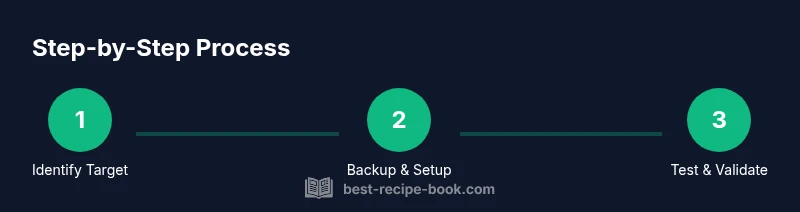
- 1
Identify the target recipe
Determine the exact recipe you want to remove by ID or by the item it crafts. This ensures you won’t accidentally disrupt other crafting paths. Document the target with notes or screenshots for reference.
Tip: Double-check the mod source to confirm the recipe is not shared by other components. - 2
Back up your data
Create a full backup of your modpack, kubejs scripts, and any related data packs. This safe step makes rollback quick if something goes wrong.
Tip: Store backups in a separate folder or external drive; version control helps track changes. - 3
Set up the script file
Create a dedicated script file (e.g., remove_specific_recipe.js) in your kubejs server_scripts directory. Include a comment header with purpose and date.
Tip: Use a descriptive file name to avoid confusion during future maintenance. - 4
Write the removal by ID
Within the script, attach to the appropriate event and call the removal function using the exact recipe ID. Save and reload to apply changes.
Tip: Include console logs to confirm when the recipe is removed during load time. - 5
Alternative: remove by output
If multiple recipes share the same output, implement a targeted removal by output while restricting scope to the intended item.
Tip: Test with in-game craft attempts for each affected path. - 6
Reload scripts and test
Reload kubejs scripts or restart Minecraft, then attempt to craft the removed item to verify success. Look for errors in logs if anything fails.
Tip: Keep a log of test results to identify patterns or recurring issues. - 7
Review dependencies
Check for mods or automation that rely on the removed recipe and adjust as needed. This minimizes cascading issues.
Tip: Document any compatibility notes for future mod updates.
People Also Ask
Is it safe to remove a recipe from kubejs?
Yes, with backups and testing in a controlled environment. Verify that only the intended recipe is affected and monitor for any unintended side effects in related crafting paths.
Yes, it is safe as long as you back up and test in a controlled environment first.
Can I undo a removal after saving?
Yes. If you have a recent backup or remember the removal script, you can reintroduce the recipe by reversing the script changes and reloading the modpack.
Yes. Restore from backup or re-add the recipe by reversing the script changes and reloading.
What about core recipes used by other mods?
Removing core or heavily shared recipes can disrupt other mods. Check dependencies and consider alternative methods like gating or balancing rather than outright removal.
Core recipes can break other mods; check dependencies and plan carefully.
Do I need to restart Minecraft after changes?
Often a script reload suffices, but some changes may require restarting the game to ensure all scripts are loaded correctly.
Usually a script reload is enough, but sometimes you should restart to be certain.
How do I remove multiple recipes at once?
Create a single script that iterates over a list of target IDs or outputs, applying the removal logic to each. Test thoroughly after applying.
You can batch-remove by iterating over a list of IDs or outputs and testing afterward.
Where should I place the script files?
Place scripts in the kubejs server_scripts directory (or the equivalent path for your setup). Ensure the script is loaded on startup.
Put the script in kubejs server_scripts and verify it's loaded on startup.
Watch Video
Key Takeaways
- Identify the target recipe precisely before editing.
- Back up everything and test in a safe environment.
- Choose removal method based on scope and risk.
- Document changes for future maintenance.
- Verify dependencies and game balance after removal.