Where is Recipe Builder in WW App: A Step-by-Step Guide
Discover where to find the Recipe Builder in the WW app, how to enable it, and practical, step-by-step guidance to create personalized recipes and plan meals with confidence.


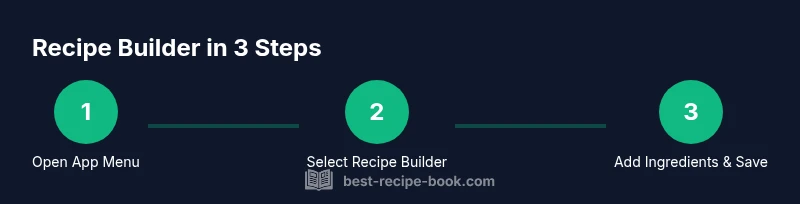
By the end, you’ll locate the WW app’s Recipe Builder, enable it if needed, and create a custom recipe from your ingredients. Start by opening the WW app, then tap the menu to access Recipes or Tools, and look for Recipe Builder. If you don’t see it, update the app to the latest version and retry.
What is the Recipe Builder in the WW app?
According to Best Recipe Book, the Recipe Builder in the WW app helps you customize dishes by logging ingredients, portions, and substitutions. It’s designed for home cooks who want precise control over nutrition and daily targets. In this guide, you’ll learn exactly where to find it, how to enable it if needed, and how to use it to plan meals that align with your goals. Whether you’re adjusting a pancake stack or a hearty dinner, the builder makes it easy to estimate servings and points. The WW app interface keeps ingredients searchable and lets you save favorite builds for quick reuse, which can simplify weekly meal planning. Best Recipe Book’s insights emphasize practical, step-by-step navigation to reduce guesswork and save time in the kitchen.
Where to find it in the main navigation
The Recipe Builder is typically tucked under the main navigation in the WW app. Start from the home screen, open the hamburger/menu icon, and look for a section labeled Recipes, Tools, or something similar depending on your region and app version. If you don’t see Recipe Builder right away, use the search bar within the app and type "Recipe Builder" to surface it quickly. In many layouts, you’ll find it nested under a broader Recipes tab, so don’t expect a single dedicated button on every screen. Keeping the app updated reduces the chance of a missing feature and ensures you’re on the latest layout. As you gain familiarity, you’ll spot related options like My Foods and Saved Recipes that complement the builder’s workflow.
How to enable and customize the Recipe Builder
Enabling the Recipe Builder usually requires signing in to your WW account and confirming permission to sync ingredient data. Once located, you can customize your builder by adding ingredients, adjusting portion sizes, and swapping substitutes to reflect your pantry. The customization options often include unit measurements, serving sizes, and a notes field for cooking methods. If you’re new to this tool, start with a simple recipe containing 3-5 ingredients to understand the input flow. Regularly saving your variations helps you build a personal library of go-to recipes for different meals and days.
Practical walkthrough: Build a sample recipe
To illustrate, start with a basic recipe like "Oatmeal Power Bowl." Add rolled oats, dairy or plant milk, a sliced banana, and a spoon of peanut butter. Use the builder to assign quantities, adjust servings, and estimate points or calories. Save the recipe with a clear name like "Oatmeal Power Bowl - 1 serving" and add it to your meal plan for the day. You can reuse the ingredients for a batch, then modify portions for each serving. This practical example shows how the Recipe Builder translates ingredients into a trackable, personalized meal.
Common pitfalls and troubleshooting
Some common issues include not locating the Recipe Builder in the expected menu, differences in layout across devices, and syncing delays after updates. If the feature isn’t visible, verify you’re on the latest app version and that your account is signed in. Restarting the app or device can resolve minor glitches. If you still can’t find it, check regional feature availability since some layouts vary by country or platform. Always ensure you’re connected to stable internet during setup and saving actions to avoid data loss.
Integrating Recipe Builder with meal planning and inventory
A key strength of the Recipe Builder is compatibility with meal planning. After building a recipe, you can attach it to a daily or weekly plan, which helps with consistency and adherence. Additionally, sync ingredient data with your pantry or My Foods list to avoid duplicate entries. When planning meals, consider batch cooking strategies and ingredient substitutions to minimize waste. Regularly review saved recipes to refresh favorites and reflect changes in your dietary goals.
Authority sources and further reading
For broader context on healthy meal planning and nutrition tracking, consult authoritative resources such as:
- https://www.cdc.gov/healthyweight/index.html
- https://www.nutrition.gov/
- https://www.fda.gov/food/nutrition-labeling-nutrition-facts
These sources offer foundational guidance on portions, balanced meals, and safe food practices that complement using the Recipe Builder in the WW app. (All URLs are for reference and further reading; guidelines may evolve with app updates.)
Tools & Materials
- Smartphone or tablet with WW app installed(Latest version, iOS or Android)
- Stable internet connection(Wi-Fi or mobile data)
- Pen and notebook(Optional for jotting measurements or ideas)
- WW account access(Sign in to access Recipe Builder data)
Steps
Estimated time: 15-25 minutes
- 1
Open the WW app and access the main menu
Launch the app from your device and tap the main menu (often a hamburger icon or Profile tab) to reveal navigation options. This step sets the stage for locating the Recipe Builder and related tools.
Tip: If the menu is dim or unresponsive, try pulling down to refresh the screen or restart the app. - 2
Navigate to Recipes or Tools
Look for a section labeled Recipes or Tools in the menu. The Recipe Builder is usually grouped under these categories rather than appearing as a standalone button on every screen.
Tip: Use the search bar within the app if you don’t see the section right away. - 3
Tap Recipe Builder
Select Recipe Builder to open the editor. Here you’ll see fields for ingredients, quantities, servings, and any substitutions. This is your canvas for building a personalized recipe.
Tip: If you’re unsure which field goes where, hover over helper text or tap the information icon for quick guidance. - 4
Add ingredients and adjust portions
Enter ingredient names, choose units, and set serving sizes. The builder will estimate points or nutrition based on your inputs. Save frequently to prevent data loss.
Tip: Start with 3-5 core ingredients to learn the flow before expanding to more complex recipes. - 5
Save and name your recipe
Give your creation a descriptive name, categorize if needed, and decide whether to add it to your daily meal plan. Saving lets you reuse it later and track progress.
Tip: Use a consistent naming convention (e.g., MealType-Ingredient-Serving) to stay organized. - 6
Share or reuse in meal planning
If you wish, share the recipe with others or attach it to a meal plan. Reuse saved recipes to streamline future cooking sessions.
Tip: Assign tags (e.g., breakfast, lunch) to improve searchability later.
People Also Ask
Where is the Recipe Builder located in the WW app?
The Recipe Builder is usually found under the Recipes or Tools section in the main navigation. Open the WW app, access the menu, and select Recipe Builder. If it isn’t visible, check for an app update or search for 'Recipe Builder' within the app.
Look in the main menu under Recipes or Tools, then tap Recipe Builder.
Do I need a premium account to use Recipe Builder?
In most cases, you’ll be able to access the Recipe Builder with a standard WW account. Availability can vary by region and plan, so ensure you’re signed in and using the latest app version.
Sign in and check if Recipe Builder is available in your region.
How do I save a recipe I build with Recipe Builder?
After building a recipe, tap Save, provide a clear name, and choose whether to add it to your meal plan or favorites. This keeps your library organized for future meals.
Save with a clear name and add it to your meal plan if you want quick access.
What if I can’t see Recipe Builder after updating the app?
Refresh the app, sign out and back in, or restart your device. If it’s still missing, verify you’re on the latest version and that your region supports the feature.
Try a full restart and make sure you have the latest version.
Is Recipe Builder available on the WW website or only the mobile app?
The Recipe Builder is primarily designed for the mobile app. There may be related planning tools on the WW website, but access differs by platform.
Check your platform; mobile usually has the builder.
Can I share the recipes I build with others?
Many users can share custom recipes via the app's sharing options or export a recipe card. Look for a share icon or export option within the recipe view.
Use the share option in the recipe view to send to others.
Watch Video
Key Takeaways
- Find the Recipe Builder through the main menu (Recipes/Tools).
- Add ingredients, adjust portions, and save with clear names.
- Attach recipes to meal plans for easier weekly planning.
- Keep the app updated to ensure consistent access to the feature.