Can You Make a Recipe Book on Canva: A Step-by-Step Guide
Discover how home cooks can create a polished, printable recipe book using Canva. This step-by-step guide covers templates, layout, photography, printing, and sharing to help you publish a beautiful cookbook without design expertise.


Yes. You can make a complete, printer-ready recipe book on Canva by using multi-page templates, consistent layouts, and your own photos. This approach works for beginners and seasoned home cooks alike, and it lets you customize typography, spacing, and color to fit your kitchen style. Below is a step-by-step guide to get started.
Why Canva makes sense for a recipe book
If you're asking can you make a recipe book on canva, the answer is a confident yes. Canva brings a familiar drag-and-drop interface to publishing, so home cooks can craft a professional-looking recipe collection without deep design experience. With adjustable grids, drag-and-drop photo frames, and a library of editable templates, you can align color, typography, and layouts with your kitchen theme. This is ideal for people who want to publish a family cookbook, a meal-planning guide, or a gift for friends. By starting with a Canva template designed for multi-page documents, you ensure consistent margins, spacing, and element alignment across every page. In addition, Canva's built-in photo editing, color palettes, and font pairings help you maintain visual coherence throughout the book. The approach scales from a simple five-recipe zine to a full, photo-rich volume you can print or share as a PDF. Best Recipe Book’s editorial team notes that Canva is especially forgiving for beginners, while still offering advanced tools for later refinements. As you explore, consider keeping your project organized with folders for recipes, photos, and design assets. This habit prevents last-minute scramble and helps you deliver a clean, readable final product.
Getting ready: what you need before you start
Before you open Canva, assemble a small kit that keeps the project on track. You’ll need a clear list of recipes, ingredient lists, and cooking steps, plus high-quality photos or illustrations for each dish. Have a consistent serving size and measurement style to avoid confusion. Gather fonts and a color palette that matches your kitchen vibe; Canva lets you save brand colors for consistency. Check your printer options if you plan a physical book; many home printers handle standard print sizes like 8.5 x 11 inches, or you can export a print-ready PDF for a professional printer. If you’re collaborating with others, set up a shared workspace so team members can contribute without overwriting each other’s work. Finally, decide on a rough table of contents and a page-count target; Canva templates can scale from a compact 20-page booklet to a feature-rich 80-page cookbook.
Choosing the right Canva template for a recipe book
Canva hosts a wide array of templates designed for magazines, journals, and e-books—many of which adapt well to recipe books. Start with a multi-page template rather than a single-page flyer; this ensures consistent page templates for titles, ingredients, steps, and notes. Look for templates labeled as “recipe book,” “cookbook,” or “meal planner” and preview the inside pages to ensure there are sections for photos, bullet lists, and step-by-step instructions. Consider layout features such as grid-based image placeholders, caption areas, and a dedicated space for nutrition or notes. If you plan to publish digitally, prioritize templates with vector icons and clean sans-serif fonts for legibility on screens. If printing, opt for templates that include bleed and safe margins; this reduces the chance of important content getting trimmed. Remember, you can remix any template—swap fonts, adjust colors, and reconfigure sections to align with your brand.
Designing a readable layout that works for recipes
The readability of a recipe book hinges on consistent typography, clear hierarchy, and ample white space. Create a master page for recipes and another for sections to minimize repetitive edits. Use a bold title style (18–22 pt) for dish names, a readable body font (12–14 pt) for ingredients and steps, and a secondary style for tips or notes. Maintain high contrast between text and background; dark text on light backgrounds is usually best for print. Place photos strategically—ideally alongside the recipe or as a full-page accent—without crowding the text. Use bullet lists for ingredients and short numbered steps for procedures to guide readers efficiently. Add sidebars for cook times, servings, and dietary notes to reduce cognitive load. Finally, test print a few pages to ensure margins, gutters, and image crop lines look correct across devices and printers.
Adding content: recipes, photos, steps, and tips
Begin by inserting a single recipe card per page: dish name, time, servings, ingredients, and step-by-step directions. Convert ingredients to bullet lists and align units of measure for consistency. Insert high-quality photos—ideally one per recipe—and crop them to fit your template’s image frames. For steps, keep sentences concise and numbered; consider short, actionable phrases rather than long paragraphs. Add a “chef’s note” or tips section to capture substitutions and flavor tweaks. Use icons to denote appliances, temperatures, and prep steps to improve scanning. When you’re ready, build a content index, so readers can jump to any recipe quickly. Keep file names organized and embed alt text for accessibility if you share digitally. Finally, run spell-check and verify that measurements, temperatures, and times are accurate to avoid kitchen mistakes.
Finalizing, printing, and sharing your Canva recipe book
Before exporting, review every page for alignment, color accuracy, and consistency. Export as a print-ready PDF with crop marks and bleed if you plan to print professionally; for digital sharing, export optimized PDFs or high-quality PNG/JPG pages. Create a web-friendly version by exporting as a multi-page PDF or converting to an e-book format if your audience prefers tablets. If you’re giving the book as a gift or selling it, add a custom cover with your name and a short subtitle to boost perceived value. Consider adding a short dedication page, a table of contents, and an index to help readers navigate. Finally, store the project in a well-labeled folder and back it up; Canva also offers version history, which can be a lifesaver if you make a misstep. Best Recipe Book suggests testing print samples and gathering feedback from friends or family before finalizing the design.
Tools & Materials
- Canva account (free or Pro)(Sign up for Canva and choose a plan that fits your needs)
- Computer or tablet with internet(Stable connection recommended; larger screen improves layout decisions)
- High-resolution recipe content(Collect recipes with accurate ingredients and steps)
- Photos or illustrations for dishes(Stock images are fine if you don't photograph every dish)
- Printer or printing service (optional)(If printing at home, check paper and bleed settings)
- Fonts and color palette (brand assets)(Use Canva's brand kit or custom palette)
Steps
Estimated time: 2-3 hours
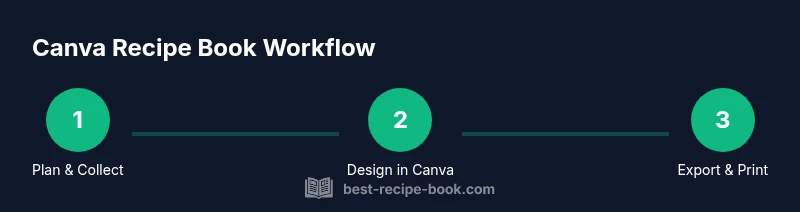
- 1
Open Canva and start a new project
Log in to Canva and create a new document with a book or magazine dimension. Browse templates and choose a multi-page option to ensure your content stays consistent across all pages. Name your project clearly so you can locate it later.
Tip: Use the template’s built-in master pages as starting points to save time. - 2
Choose a template and set your page size
Select a recipe-focused template or a magazine layout that accommodates images, ingredients, and steps. Set your page size (for print: commonly 8.5 x 11 inches or A4) and enable bleed if you plan to print professionally.
Tip: Enable bleed margins early to avoid awkward trims during printing. - 3
Brand the design with fonts and colors
Apply a cohesive font pairing and a limited color palette that fits your kitchen aesthetic. Create a simple style guide within Canva so titles, ingredients, and notes stay uniform across all recipes.
Tip: Stick to 2 fonts max and reserve bold for dish names to maintain readability. - 4
Add recipes and standardize formatting
Enter each recipe as a separate card or page. Use bullet lists for ingredients and numbered steps for instructions. Keep measurements consistent and add cook times and servings where relevant.
Tip: Create a template block for ingredients and steps to speed up future entries. - 5
Incorporate photos and refine layout
Upload photos, place them in photo frames, and align with captions. Check alignment by zooming in and out; adjust margins to avoid crowding text.
Tip: Use natural light photos and crop to fit the frame without losing important details. - 6
Proof, export, and share
Run a final proofing pass, check for spelling and measurements, then export a print-ready PDF or share a digital version. If printing, request a test print to verify color and margins.
Tip: Save versions as you go and keep a master copy untouched.
People Also Ask
Can I use Canva to create an entire recipe book or just individual recipe cards?
Yes, Canva supports multi-page projects suitable for a complete cookbook, including chapters, sections, and a printable PDF.
Yes, Canva handles full multi-page cookbooks.
Do I need Canva Pro to access all recipe book features?
Many templates are accessible on the free plan, but Pro unlocks premium templates, stock photos, and brand kits that speed up production.
Most features work on the free plan, but Pro adds more assets.
What print formats can Canva export for a recipe book?
Export options include print-ready PDF and standard image formats; you can choose settings based on whether you print at home or via a professional printer.
You can export print-ready PDFs or image files.
Can I use my own photos taken with a phone?
Absolutely; use high-resolution photos and crop them appropriately to match your template's frames.
Phone photos work well if they’re high quality.
How can I ensure my recipe book is easy to read on screens and in print?
Choose a clear font pair, maintain contrast, and use consistent spacing; add white space and section headers to help readers scan quickly.
Keep fonts readable with strong contrast and ample spacing.
Watch Video
Key Takeaways
- Plan content before design to save time.
- Maintain a consistent layout across all recipes.
- Export print-ready PDFs for physical copies.
- Test print and collect feedback before finalizing.