How to Make Recipe Cards on Canva: A Complete Guide
Learn to create beautiful, print-ready recipe cards on Canva with a step-by-step workflow. From templates to exports, this guide helps home cooks design clear cards.


By the end, you’ll know exactly how to make recipe cards on Canva: choose a template, tailor typography and layout, add titles, ingredients, and steps, and export print-ready PDFs or social-ready images. This step-by-step approach helps home cooks create brand-consistent cards using Canva’s drag-and-drop tools.
Why Canva is Ideal for Recipe Cards
Canva has become the go-to design tool for home cooks who want professional-looking recipe cards without a steep learning curve. The platform offers hundreds of templates designed for food and family meals, plus drag-and-drop editing that makes typography, imagery, and color decisions quick and intuitive. For many readers, Canva is a friendly sandbox where you can experiment with layout and branding before committing to a print run or a digital share. According to Best Recipe Book, Canva’s built-in grids, align tools, and quality image library help you achieve consistent results even if you’re new to design. This is especially useful when asking questions like how to make recipe cards on Canva: start with a template aligned to your theme, then customize typefaces, spacing, and color to reflect your kitchen’s personality. The key is keeping the design balanced: enough white space, legible fonts, and clear sections so readers can follow along without confusion.
Choose the Right Template for Your Theme
Templates are the fastest path to a polished card, but the theme must match your recipe style and audience. If you publish vegetarian meals, choose templates with bright greens and soft yellows; for family-favorite desserts, lean toward warmer tones and inviting typography. Canva's search filters let you sort by color, layout, and image availability, so you can quickly narrow to options that suit your brand. When you’re learning how to make recipe cards on Canva, pick a template with a grid that accommodates a title, ingredients, steps, and notes without feeling crowded. If you plan to print multiple cards, consider a reusable layout that supports consistent alignment across all recipes. Finally, bookmark a few templates as favorites so you can reuse the core structure for future projects without reinventing the wheel.
Typography and Color: Readability and Branding
Typography and color choices are the backbone of readable, attractive recipe cards. Start with a bold display font for the title and a simple sans-serif for body text; avoid fancy scripts that are hard to read in smaller sizes. Use a single primary color for headings and 1-2 accent colors that align with your branding. Canva lets you adjust line height, letter spacing, and paragraph spacing; small tweaks can dramatically improve legibility. For how to make recipe cards on Canva, keep the color contrast high: dark text on light backgrounds or reverse when necessary. Save color palettes as brand kits, so every new card matches your overall look. If you want print-friendly results, test print a draft to ensure the chosen fonts stay legible at 3-4 inches tall and that color reproduction looks right on your printer.
Layout, Grids, and Card Size
Successful recipe cards rely on a clean layout and consistent grids. Decide on a standard card size early—common options are 4x6 inches for printed cards or 3x5 inches for compact handouts—and set margins to keep text away from the edge. Use Canva's grid and alignment tools to snap elements into place and create even spacing between sections. A strong layout places the recipe title at the top, followed by a succinct note (optional), serving size, ingredients, and step-by-step directions. Reserve a dedicated area for a photo or illustration if you plan to include imagery. Consistency across a mini-collection makes it easier for readers to recognize your work, whether you print a batch of cards or publish a gallery on your blog.
Adding Content: Title, Servings, Ingredients, Steps
Designing the card’s content is often the most time-consuming step, but Canva’s text boxes simplify the process. Start with a clear recipe title; set a readable font size (for example, 18-28 pt for titles, 11-14 pt for body text). Add a short servings line (servings: x) near the top. Create a separate section for Ingredients with bullet formatting and line breaks to prevent long lines from wrapping. Then add a Step-by-Step section with numbered steps; each step should be concise and action-oriented. Break long instructions into shorter sentences to improve scannability. If you include a notes line or tips, place it at the bottom in a distinct font style or color. When you’re done, read the card aloud to ensure the flow feels natural and the measurements are easy to follow.
Images, Icons, and Brand Elements
Images can elevate a recipe card, but they should support the text rather than overwhelm it. Use a high-quality photo of the finished dish or an illustration that communicates the recipe theme. Canva’s icon library can provide small flourishes like utensils or leaves to reinforce the card’s mood. Always overlay brand elements, such as a logo or your color palette, in a non-intrusive corner so the card remains legible. If you’re including a photo, crop it to a square or vertical orientation that fits your chosen card size. Remember to optimize image size to avoid slowing down export or print quality.
Exporting for Print and Digital Sharing
Once the design is finalized, Canva offers several export options. For print, choose PDF Print or PDF/X-1a if your printer requires it, and include bleed if your design reaches the edge. For digital sharing, export as PNG or JPG at a comfortable resolution (around 150-300 dpi). Consider creating a web-optimized version for social media or a PDF booklet if you’re compiling multiple cards. Save the Canva project as a template so you can reuse it for new recipes without losing your layout.
Quick-Start Workflow: From Blank to Card in 60 Minutes
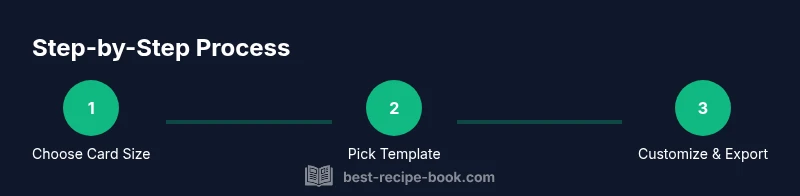
Time can be tight in kitchen projects, but Canva makes the process surprisingly fast once you know the flow. In under an hour you can go from a blank canvas to a ready-to-print recipe card by following these practical steps: choose size, pick a template, customize typography, add content, adjust spacing, insert visuals, and export. This section walks through the practical steps with real-world pacing. Start by opening Canva and selecting your card size, then swap in a template that matches your theme. Replace placeholder text with your recipe details, adjust font sizes for readability, and align all elements to your grid. Finally, export a print-ready PDF and a web-friendly image for sharing online.
Common Pitfalls and How to Avoid Them
Many beginners struggle with readability or misaligned elements. Slow down at the printing stage; tiny misalignments become obvious on physical cards. Avoid overcrowding by limiting the number of fonts to two and keeping body text at a minimum. If you plan to print in bulk, test a single card on your chosen stock to verify color accuracy and edge trimming. Finally, build a small library of reusable layouts to speed up future projects.
Tools & Materials
- Computer or tablet with internet access(Can access Canva web app; a smartphone with the Canva app works for quick edits)
- Canva account(Free plan is sufficient for most templates; Pro unlocks Brand Kit and advanced templates)
- Brand assets (logo, color palette, fonts)(Helps maintain consistency across cards and future projects)
- Printer and card stock (optional)(For at-home printing; consider bleed margins and edge trimming)
- Images or photos for recipe visuals(Use high-quality visuals sized for print or web)
- Access to brand fonts (optional)(Can enhance branding if you have licensed fonts)
Steps
Estimated time: 60-90 minutes
- 1
Set Card Size and Orientation
Open Canva and start a new design. Choose a card size (such as 4x6 inches) and an orientation that fits your content. This establishes the space you’ll use for titles, ingredients, and steps.
Tip: Use a single orientation to keep layouts consistent across multiple cards. - 2
Choose a Template That Matches Your Theme
Search Canva templates for a recipe or food theme and select one that provides a clear header, space for ingredients, and a steps area. Avoid templates that feel cluttered or too short for your recipe.
Tip: If you love a template but hate a font, you can swap fonts without changing the layout. - 3
Create a Grid and Align Elements
Turn on rulers and alignment guides and place major sections (title, servings, ingredients, steps) on a grid. Consistent margins and spacing improve readability and print accuracy.
Tip: Snap elements to the grid to maintain even spacing on every card. - 4
Add Title and Branding
Type your recipe title with a readable, prominent font size. Add your brand color to headings and place a small logo or watermark in a non-intrusive corner.
Tip: Reserve the top area for the title and ensure the brand mark doesn’t obscure the main content. - 5
Input Ingredients and Measurements
Create a dedicated Ingredients section with bullet points or a compact list. Keep measurements precise and readable; place this section before the Steps.
Tip: Limit lines per ingredient to avoid text wrapping and crowding. - 6
Add Steps as a Numbered List
Create a numbered Steps section. Write concise, action-oriented steps and break long instructions into short sentences for quick scanning.
Tip: Use a consistent numbering style and avoid overly long paragraphs. - 7
Incorporate Imagery and Decorative Elements
Insert a photo or illustration that supports the recipe. Add small icons or subtle flourishes that reinforce the theme without overpowering text.
Tip: Crop imagery to a simple shape (square/vertical) to fit the card layout. - 8
Export for Print and Digital Sharing
Export a print-friendly PDF (with bleed if needed) and a web-friendly PNG/JPG for social sharing. Save a Canva template for future uses.
Tip: Keep a separate edit version for future tweaks.
People Also Ask
Can I customize fonts in Canva for recipe cards?
Yes, Canva offers a variety of fonts and the option to pair one header font with a readable body font. You can adjust size, spacing, and line height to optimize readability.
Yes, you can customize fonts and pair them for readability and style.
What sizes are commonly used for recipe cards?
Common sizes include 4x6 inches for print and 3x5 inches for compact handouts. Pick one size and stay consistent across your collection.
Common sizes include 4x6 inches and 3x5 inches.
Is Canva Free enough to design professional recipe cards?
The Canva free plan covers many templates and features; Pro unlocks Brand Kit and advanced templates that streamline branding.
Yes, the free plan works for many cards; Pro adds branding tools.
How do I export a print-ready PDF from Canva?
Click Share > Download, select PDF Print or PDF/X-1a as needed, and enable bleed if your design reaches the edge. Use high resolution for print.
Export as PDF Print or PDF/X-1a with bleed for print-ready output.
Can I reuse a Canva recipe card template for multiple recipes?
Yes. Save the template as a master file and replace text and images for new recipes while preserving the layout.
Yes, save as a master template and reuse for other recipes.
Do I need Canva Pro to access Brand Kit?
Brand Kit is a Pro feature, but you can still design with free assets. Pro makes branding faster and more consistent.
Brand Kit is a Pro feature; you can still design with free assets.
Watch Video
Key Takeaways
- Choose templates that fit your theme and branding.
- Prioritize readability with clear typography and high contrast.
- Use grids and margins to keep layouts balanced.
- Save reusable templates to streamline future recipes.
- Export in print-ready PDFs and web-friendly images.